
To fix slow or dropping WiFi, test speed three times: with a cable at the modem, on WiFi next to the router, and in the slow room. A slow cable test points to your provider or plan, a slow far room points to signal, and drops for everyone at once point to a restart, overheating or a provider fault. Restart the modem and router first.
PCBy the Pixl Canada install team. Maker and streaming guidance read October 31, 2026. 8 min read.
- Symptom-to-cause table
- A three-place speed test
- Does your plan really limit you?
- Who to call
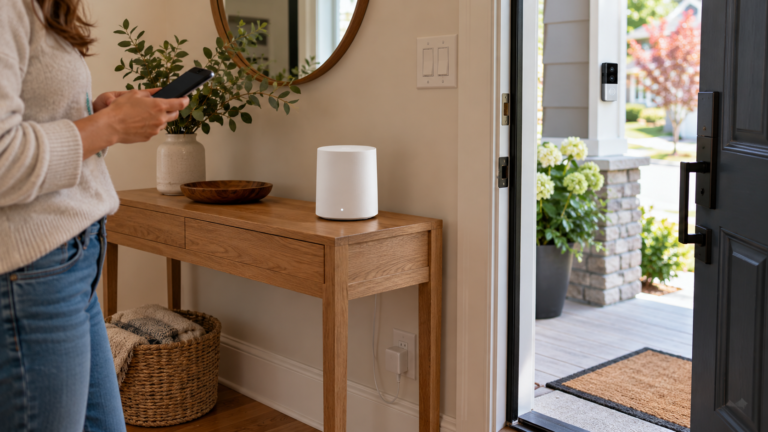
- Test with a cable first. If a cable is slow too, the problem is not your WiFi.
- If the cable test is fine and a far room is slow, it is coverage. Move the router, then add a node halfway.
- Most homes use a small share of their plan. A busy household of six uses about 65 Mbps (calculated from Netflix and Zoom figures).
- Restarting is safe and keeps your settings.
Which problem do you have?
Slow and dropping WiFi has half a dozen causes. NETGEAR lists old hardware, provider equipment and plan limits, interference and walls, too many devices, poor placement and software or overheating issues. Find your symptom first.
| What you see | Likely cause | Quick test | Fix |
|---|---|---|---|
| Slow everywhere, even with a cable | Provider, modem or plan | Cable test at the modem is below your plan | Restart the modem, check for an outage, call your provider |
| Fast near the router, slow in far rooms | Weak signal, distance or walls | Same speed test in both places | Move the router, then add a node halfway. See how to improve WiFi signal |
| Drops for everyone at the same time | Router or modem restarting, overheating, or a provider fault | Check the router lights and whether it rebooted | Give it ventilation, restart, update firmware |
| One device drops, others are fine | That device’s WiFi settings or distance | Forget the network on that device and rejoin | Update the device, move closer, or check the band it joined |
| Slow at busy times, in a condo or townhouse | Neighbouring networks on the same channel | Compare morning and evening tests | Change the channel only if you see drops. See WiFi in a condo |
| Cameras or doorbell go offline | Weak signal at the door or yard | Test WiFi at the device | Add a node between the router and the door |
How do you find out whether it is WiFi or the internet?
Run the same speed test three times: on a laptop plugged into the modem, on your phone next to the router, and on your phone in the slow room. NETGEAR’s rule is that if you reach your paid speed but WiFi is still slow, the problem is your home network, not your provider.
| Result | What it means | Do this |
|---|---|---|
| Cable at the modem matches your plan, WiFi next to the router matches too | Internet and router are fine | The problem is coverage in other rooms |
| Cable matches your plan, WiFi next to the router is far lower | The router or its settings | Restart, update firmware, check the band, or replace an old router |
| Cable test is also low | Provider, modem or plan | Restart the modem and call your provider. NETGEAR says WiFi is not the cause if you cannot reach the paid speed on a cable |
| Fast, then slow some hours later | Overheating, memory or a provider fault | Restart, give the router space and update its firmware |
What do you try, in order?
- Restart the modem and router. Unplug both for about 30 seconds. Plug the modem in first, then the router.
- Run the three-place speed test. Cable at the modem, phone by the router, phone in the slow room.
- Move the router. Central, open and raised, away from microwaves and metal. See how to improve WiFi signal.
- Update the firmware. Check the maker’s site for your model.
- Forget and rejoin on the slow device. This clears a bad saved connection.
- Add a node or replace the router. Only after the steps above. A node goes halfway to the weak room.
Is your internet plan too small?
Usually not. Netflix recommends 3 Mbps for 720p, 5 Mbps for 1080p and 15 Mbps for 4K. Zoom lists about 1.8 Mbps down and 2.6 Mbps up for a 720p group call. Adding these for busy households gives the table below. It leaves out large downloads, game updates and cameras, which add to it.
| Household | Activity at the same time | Download and upload needed | On a 100 Mbps plan | On a 500 Mbps plan | On a 1 Gbps plan |
|---|---|---|---|---|---|
| 2 adults | 1 x 4K, 1 x 1080p, 1 video call | 21.8 Mbps down, 2.6 up | 22 percent | 4 percent | 2 percent |
| Family of 4 | 2 x 4K, 2 x 1080p, 2 video calls | 43.6 Mbps down, 5.2 up | 44 percent | 9 percent | 4 percent |
| Busy household of 6 | 3 x 4K, 3 x 1080p, 3 video calls | 65.4 Mbps down, 7.8 up | 65 percent | 13 percent | 7 percent |
A household of six streaming in 4K and 1080p and on three calls uses about 13 percent of a 500 Mbps plan. If your video still buffers at that size of plan, look at signal and interference before you pay for a faster plan.
Why does WiFi keep disconnecting?
- The router overheats or runs out of memory. NETGEAR names software, hardware and overheating issues. Keep it in open air, restart it and update the firmware.
- The router is old. Older models struggle with many devices. The Canadian Centre for Cyber Security also says to check whether your router is end-of-life and no longer gets updates.
- Interference. NETGEAR names microwave ovens, cordless phones and baby monitors, and says to change the channel only if you see drops or slow transfers. NETGEAR lists 1, 6 and 11 as the channels that do not overlap on 2.4 GHz in the USA.
- Extenders in a chain. NETGEAR notes that too many or poorly placed extenders cause problems. See mesh WiFi vs extender.
- Two routers in a row. If your provider’s modem is also a router, NETGEAR suggests turning off its WiFi or using bridge mode. See bridge mode and your ISP modem.
- Cameras and doorbells. A device at the edge of your WiFi drops first. See WiFi dead zones for doorbells and cameras.
Who do you call, your provider or Pixl?
| Problem | Call |
|---|---|
| No internet at all, or a cable test is slow | Your internet provider |
| Cable test is fine, WiFi is weak or drops in some rooms | Pixl: placement, mesh nodes and setup |
| The provider’s modem or router has failed | Your internet provider |
| You want to rebuild the network or add a guest network | Pixl: guest WiFi and IoT setup |
Pixl installs this: WiFi placed and tested, from $129
Pixl’s posted price for home WiFi or mesh setup is $129 and up, before tax. We walk the home, place the router or nodes, set up the network and test the rooms you use. The equipment is bought separately, and you pay after the job. Same-day service is available when we have an opening.
WiFi is slow, drops, or does not work in some rooms, and you want to find the cause before buying anything.
The internet is down for the whole area. Check your provider’s outage page. If your router will not respond at all, see how to reset a router.
Slow or disconnecting WiFi: frequently asked questions
Why is my WiFi so slow all of a sudden?
Test with a cable at the modem. If it is also slow, the cause is your provider, modem or plan. If the cable is fine, restart the router, check for interference and compare the speed next to the router with the speed in the slow room.
Why does my WiFi keep disconnecting?
Common causes are an overheating or old router, interference, a weak signal in that room, extenders chained together, or two routers in a row. Restarting and updating the firmware are the first steps.
Why is my WiFi not working but other devices connect?
Forget the network on that device and rejoin with the password. Then update the device. If it is the only one, the router is probably fine.
How do I fix WiFi that works only near the router?
That is a coverage problem. Move the router to a central, open spot, then add a mesh node or extender halfway to the weak room. See how to improve WiFi signal.
Does restarting the router fix slow WiFi?
Sometimes. NETGEAR lists glitches and memory overload among the causes and suggests rebooting the router and modem. A restart keeps your settings and is safe to try.
How much internet speed do I need?
Netflix recommends 15 Mbps for a 4K stream and 5 Mbps for 1080p. We calculate that a busy household of six uses about 65 Mbps. Most slow WiFi comes from coverage, not the plan size.
Should I change the WiFi channel?
Only if you see dropped connections or slow transfers. The router picks a channel automatically, and NETGEAR lists 1, 6 and 11 as the non-overlapping 2.4 GHz channels in the USA.
Can Pixl fix my WiFi?
Yes. Pixl places the router or nodes, sets up the network and tests the rooms that matter, from $129 before tax. We do not run new cable through walls.
WiFi still slow after these steps?
Text your home size, floors and what drops. You get a fixed price before you book, and you pay after the job. Same-day service is available when we have an opening.
Smart home installation
Installation price list Canada
All installation services
Installation by project
All installation guides
How to improve WiFi signal
WiFi in a condo or apartment
Change WiFi name and channel
Sources and method. Causes and the cable-test rule come from NETGEAR’s slow WiFi guide and its channel article. Streaming speeds are from Netflix’s recommended speeds and Zoom’s system requirements. End-of-life advice is from the Canadian Centre for Cyber Security. All read October 31, 2026. Menu names change by firmware.
Household demand. Calculated with Python from the published figures: 2 adults = 15 + 5 + 1.8 = 21.8 Mbps down. Family of 4 = 2 x 15 + 2 x 5 + 2 x 1.8 = 43.6. Busy household of 6 = 3 x 15 + 3 x 5 + 3 x 1.8 = 65.4, which is 13 percent of 500 Mbps. Upload is 2.6 Mbps per call. The three-place test result rules are our planning rules. Pixl’s price is the posted price on our WiFi installation page, before tax.
About Pixl Canada. Pixl Canada is an installation company based in Edmonton, Alberta, serving cities across Canada with TV mounting, security cameras, appliance installation and smart home setup. Call or text (587) 899-7495. Open Monday to Saturday 8am to 8pm and Sunday 9am to 7pm.