
Smart devices · 7 min read · updated oct 2026
Mesh WiFi vs WiFi Extender: Which Should You Buy in Canada?
By the Pixl Canada install team
Short answer
Choose a WiFi extender to fix one isolated dead spot on a budget, and a mesh system to cover a whole home or many devices. An extender that receives and re-sends on the same band can cut speed on the extended signal by up to half, while a mesh system uses a better link between units, ideally a dedicated radio or an Ethernet cable. Put either one about halfway between the router and the weak area, not in the dead spot.
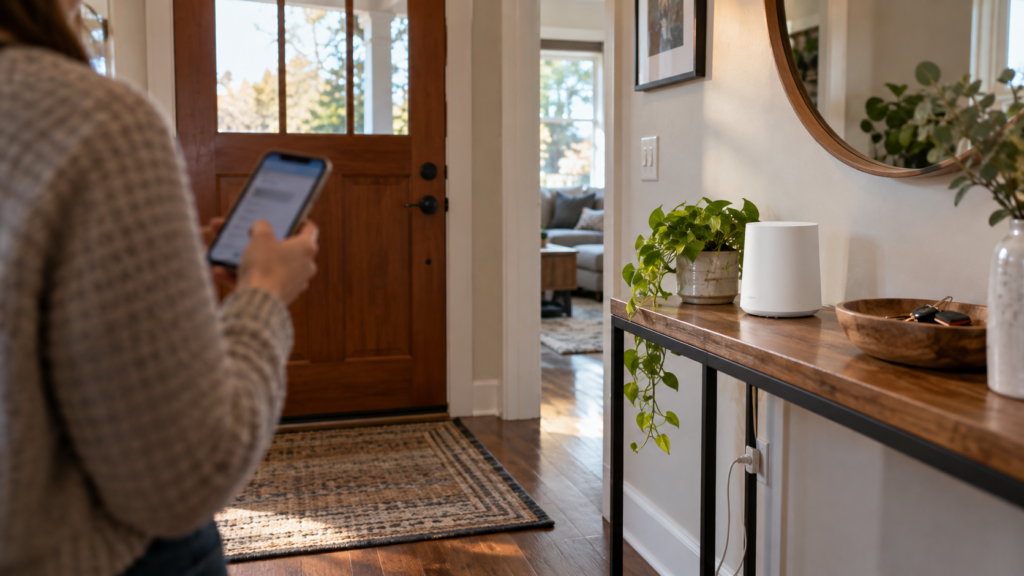
Home WiFi or mesh setup starts at $129 before tax, with equipment bought separately. You pay after the job. See smart home prices
Mesh WiFi vs WiFi extender at a glance
| WiFi extender | Mesh WiFi system | |
|---|---|---|
| How it works | Picks up your router’s signal and repeats it | Several units share one network name and pass traffic between them |
| Best for | One dead spot, such as a bedroom or garage | A whole home, several floors, or a large number of devices |
| Speed in the far room | Can drop by up to half when it uses the same band to receive and send | Better when the units use a dedicated radio or a cable between them |
| Moving around the house | Often a second network name to switch between | One network, with devices handed from unit to unit |
| Cost | Lower | Higher |
| Setup effort | Low | Moderate, and best planned before you buy |
| Pixl install price | Home WiFi or mesh setup from $129 before tax; equipment is separate | |
Prices are the Pixl Canada installation price before tax, not the cost of the hardware. You pay after the job.
Why an extender can slow your connection
A basic extender has to receive data from the router and send it to your device on the same radio band. It cannot do both at the same moment, so each hop uses airtime. NETGEAR says extenders that receive and retransmit on the same band “typically cut available bandwidth in half” and add delay. TP-Link gives the same rule of thumb, saying any single-band extender that rebroadcasts on the same band reduces throughput by up to 50 percent on the extended signal. See NETGEAR’s extender vs booster guide and TP-Link’s extender explainer.
“Up to half” is a rule of thumb, not a promise. The result depends on how strong the router’s signal is where the extender sits. Dual-band and WiFi 6 extenders manage this better because they can use one band to talk to the router and another to talk to your devices.
How a mesh system is different
A mesh system is a router plus one or more units that work as a team. The link between the units is called the backhaul. When that link has its own radio, or runs over an Ethernet cable, your phone and TV are not competing with it for airtime. Some tri-band systems reserve one radio for this link, and TP-Link calls a mesh system “the more durable long-term fix” for whole-home coverage problems.
Mesh systems are not magic. They still need a good link to the router, and a unit placed too far away will pass on a weak signal. That is why placement matters as much as the hardware.
Home WiFi or mesh setup starts at $129 before tax, with equipment bought separately. You pay after the job.
Which one should you buy?
| Your situation | Usually the better choice | Why |
|---|---|---|
| One bedroom or garage with weak WiFi, the rest of the house is fine | Extender | Cheap and quick for one isolated spot |
| Two or three floors, or a long house | Mesh | Several units can cover the whole layout |
| Many phones, TVs, cameras and a smart home | Mesh | Handles more devices and moving between rooms |
| You can run Ethernet between rooms | Mesh or wired access points with a cable between them | A cable is the strongest link between units |
| Doorbell or camera at the edge of your WiFi | A unit placed between the router and the device | Gives the device a strong signal at the mounting point |
Where to put an extender or mesh unit
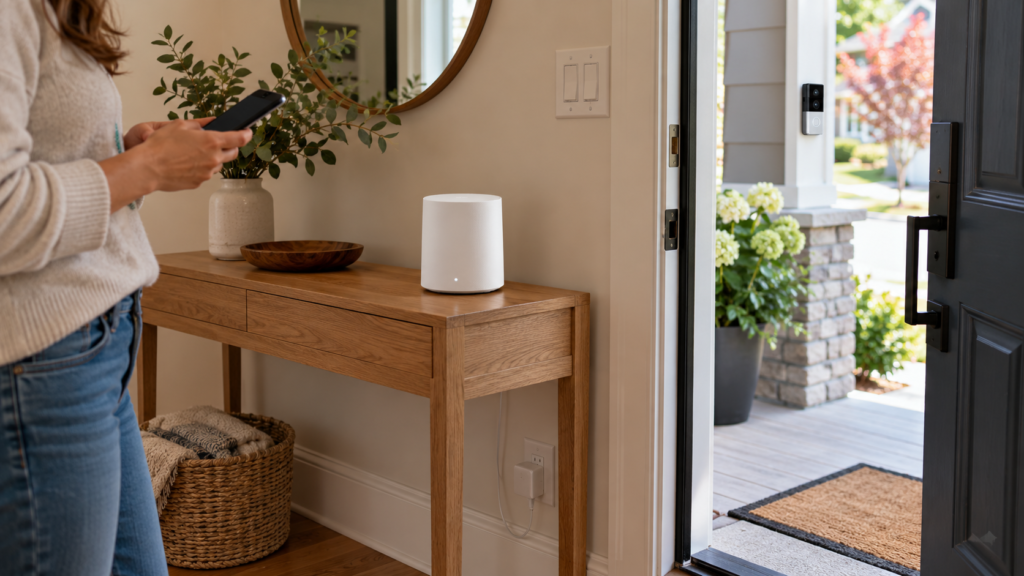
- Halfway, not in the dead spot. TP-Link advises placing an extender halfway between the router and the dead zone. Google gives the same advice for its WiFi points: put the point partway toward the weak area, not in the weak spot itself.
- Keep units close enough to each other. Google says to place each point no more than two rooms away from the router or another point, and to space them evenly.
- Get it off the floor and in the open. Google recommends a shelf or TV stand, ideally at eye level and away from objects that block the signal.
- Give units line of sight. Points perform better when they can see each other. Avoid putting walls, doors or aquariums between them.
- Test after you place it. Google’s system has a mesh test, and many others have a similar app check. Run it after you set up and after you move a unit.
Read Google’s guide to where to place WiFi devices for the full list.
How to test before and after
- Pick the room where the problem is and note what you do there, such as video calls or streaming.
- Run a speed test next to the router and again in the problem room. Write both numbers down.
- Install the extender or mesh unit and run the same test in the same two places.
- If the far room is still weak, move the unit closer to the router and test again.
Test where you actually use the device. A phone can show full bars next to a unit that has a weak link back to the router. Our WiFi dead zone checklist for doorbells and cameras shows how to test at the exact mounting point.
Cameras and doorbells need a steady signal
A doorbell or camera at the edge of your WiFi can miss alerts and drop video. A brick or stucco wall between the router and the door makes it worse. Add the unit before you drill, and check the signal at the mounting spot. If you are choosing between power types, read wired vs battery video doorbell, and for outdoor cameras see PoE vs WiFi cameras for Canadian winters.
Common mistakes
- Putting the extender in the dead spot. It cannot repeat a signal it can barely receive.
- Buying before you map the problem. Know which rooms are weak first.
- Adding more units than you need. Google says its WiFi and Nest Wifi systems support up to 5 routers and points in one network, and that they are not meant to cover several dwellings.
- Mixing generations. Google notes that Nest Wifi Pro (WiFi 6E) cannot join a mesh with Nest Wifi or Google Wifi (WiFi 5) devices. Check compatibility before you add a unit.
- Ignoring the router. Moving the router to a central, open spot can fix a weak room before you buy anything.
Book a WiFi or mesh setup
At Pixl Canada, home WiFi or mesh setup starts at $129 before tax. The number of units, the layout of your home, your internet connection and whether we can run Ethernet between units all affect the job. Equipment is bought separately, and you pay after the job. See smart home installation and the smart home installation cost guide.
Frequently asked questions
Is a WiFi extender or a mesh system better?
A mesh system is better for a whole home or many devices, and an extender is fine for one isolated dead spot. The extra cost of mesh pays off when the problem covers more than one room.
Do WiFi extenders cut your speed?
Often, yes. NETGEAR and TP-Link both say a basic extender that receives and repeats on the same band can cut throughput by up to half on the extended signal. Dual-band and WiFi 6 models lose less.
Does mesh WiFi reduce internet speed?
Every wireless hop costs some speed, but a system with a dedicated radio or an Ethernet cable between units loses far less than a basic extender. Placement and the strength of the link to the router matter most.
Where should I put a mesh unit?
Partway between the router and the weak area, off the floor, in the open and no more than about two rooms from the next unit, following Google’s guidance for its WiFi points.
Can I use an extender and a mesh system together?
It is usually better not to. Extra devices add hops and can make roaming confusing. Fix the weak link first and add mesh units if you need more coverage.
How much does WiFi or mesh setup cost with Pixl?
Home WiFi or mesh setup starts at $129 before tax, with equipment bought separately. You pay after the job.
This guide is general information based on manufacturer guidance. Check your equipment’s manual, and prices are before tax and were checked in October 2026.
Ready to book? Home WiFi or mesh setup starts at $129 before tax, with equipment bought separately. You pay after the job.
Written by the Pixl Canada install team: licensed technicians with $5 million liability insurance, installing TVs, security cameras, smart home devices and appliances across Canada.
Keep reading
WiFi dead zones for doorbells and cameras
Test at the mounting point
Smart home installation cost
Published prices
Wired vs battery video doorbell
Which power type to choose