
To connect a TV to WiFi, open the TV’s Settings, choose Network (or General, then Network), select your WiFi name, enter the password and wait for the connection to confirm. If it fails, restart the TV and router, move the router closer or add a mesh node, check that the TV is on the 2.4 GHz or 5 GHz band your router offers, and try a wired Ethernet cable, which is the most reliable option for streaming. Menu names differ by brand, but the steps are the same.
PCBy the Pixl Canada install team. Updated . 6 min read.
- Steps for Samsung, LG, Sony and Roku-style menus
- Eight fixes when it will not connect
- WiFi vs Ethernet for streaming
- Home WiFi and mesh setup from $129
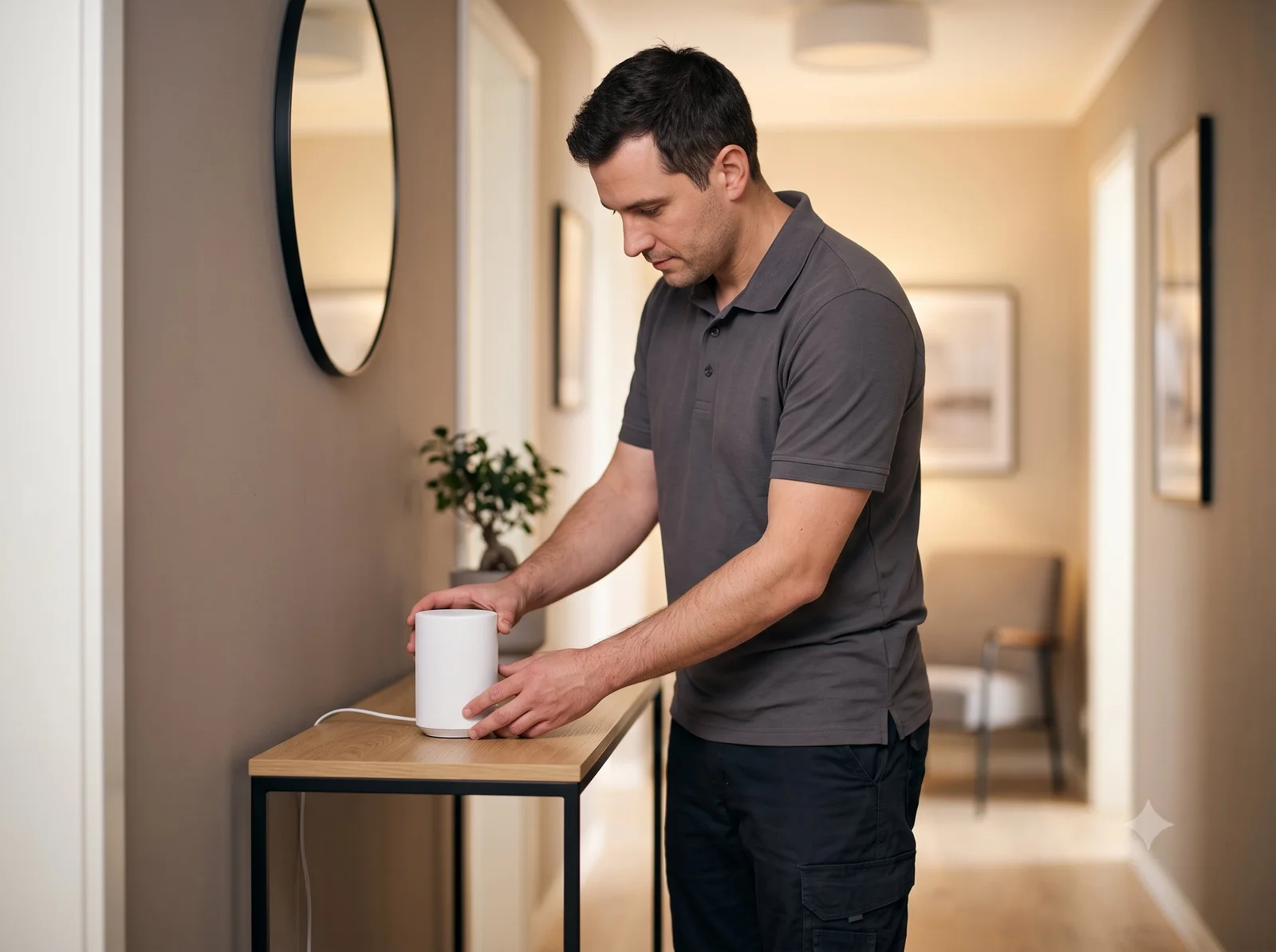
- Settings, then Network, then pick your WiFi and enter the password.
- A weak signal at the TV is the most common reason it will not connect or keeps buffering.
- Ethernet is steadier than WiFi for 4K streaming.
- A mesh node near the TV can fix a dead zone.
How do you connect a TV to WiFi?
- Have your WiFi name and password ready. They are often on a sticker on the router.
- Press Settings or Home on the TV remote.
- Open Network. It may be under General or Connection.
- Choose WiFi or Wireless and wait for the list of networks.
- Select your network and type the password carefully.
- Wait for “Connected” and test with a streaming app.
Where is the network setting on each TV brand?
| Brand | Usual path |
|---|---|
| Samsung | Settings, then General, then Network, then Open Network Settings |
| LG | Settings, then Network or Connection, then WiFi Connection |
| Sony (Google TV) | Settings, then Network and Internet |
| Roku TV | Settings, then Network, then Set up connection |
| Fire TV | Settings, then Network |
What do you do when the TV will not connect to WiFi?
| Problem | Fix |
|---|---|
| Weak signal | Move the router closer or add a mesh node near the TV. See home WiFi and mesh installation |
| Wrong password | Re-enter it and check upper and lower case |
| Network is hidden or on a different band | Check which bands the TV supports and choose a visible network |
| TV software out of date | Update the TV firmware through Ethernet or a USB update |
| Router needs a restart | Unplug the router for 30 seconds, then power it back on |
| Too many devices | Disconnect unused devices or upgrade the router |
| Still failing | Use Ethernet, or reset the TV’s network settings |
Is WiFi or Ethernet better for a TV?
Ethernet is steadier and avoids interference, which matters for 4K streaming and gaming. WiFi is fine when the signal is strong. If the TV is mounted on a wall away from the router, running a cable can be hard, so a mesh node placed in the same room often solves buffering. Pixl’s home WiFi or mesh setup starts at $129, before tax, and new cable runs through walls are quoted separately. See also mesh WiFi vs extender and TV mounting service.
Connecting a TV to WiFi: frequently asked questions
How do I connect my TV to WiFi?
Open Settings, go to Network, select your WiFi name, enter the password and wait for it to confirm.
Why won’t my TV connect to WiFi?
A weak signal, a wrong password, or a router that needs a restart are the usual causes.
Can I connect a TV to WiFi without the remote?
Some TVs let you use a phone app or a USB keyboard. Otherwise use an Ethernet cable until you can set it up.
Is Ethernet better than WiFi for streaming?
Usually yes, because it is steadier, but a strong WiFi signal works well too.
Why does my TV keep buffering?
A weak WiFi signal at the TV. Move the router, add a mesh node or use a cable.
Can Pixl set up my home WiFi?
Yes, from $129 before tax. You pay after the job.
TV buffering? Fix the signal
Home WiFi or mesh setup from $129, before tax. You pay after the job.
TV wall mounting in Canada
Connect an iPhone to a TV
WiFi dead zones
Change your WiFi password
Set up a Fire TV Stick or Roku
Factory reset a smart TV
WiFi for basements, garages and patios
WiFi in a condo or apartment
WiFi 6 vs 6E vs 7
Find and share your WiFi password
Slow or disconnecting WiFi
How to improve WiFi signal
Connect Alexa and Google Home to WiFi
Sources and method. General steps from TV manufacturers’ support pages. Menu names vary by model and year, so check your manual. Pixl prices were checked in October 2026, in Canadian dollars, before tax.
About Pixl Canada. Pixl Canada is an installation company based in Edmonton, Alberta, serving cities across Canada with TV mounting, security cameras, appliance installation and smart home setup. Call or text (587) 899-7495. Open Monday to Saturday 8am to 8pm and Sunday 9am to 7pm.
One Response